Notepad++ is an amazing text and source code editor makes editing text much easier. And lots of features makes repetitive task done within seconds with macros, extended find and replace, and other simple 1 click options. Here is the trick to remove remove line breaks from a text file in Notepad++ with the Find and Replace Option.
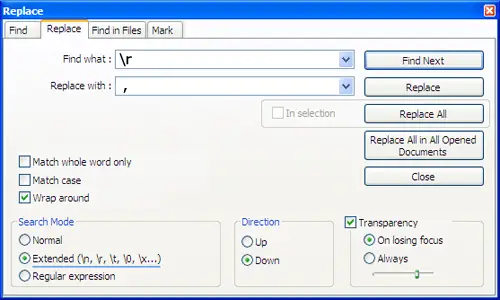
Here are the steps.
- First add or open your text to Notepad++.
- Press “Ctrl+H” to open the Find and Replace Window.
- Select the “Extended” option on the “Search Mode” on the bottom left of the window.
- On the “Find What” textbox add “\r ” which means carriage return in c programming.
- On the “Replace With” add a space or a comma(,) to make the output clearer.
Get your work done fast with this feature on your huge text files or documents.